How to Install 35-ds3chipdus3: What the Checks Actually Found
If you are looking for how to install 35-ds3chipdus3, here is the honest answer first: there is nothing to install. No chip by that name exists in any distributor catalogue, no manufacturer publishes a datasheet for it, the company the guides name cannot be found, and the support website they give does not resolve — the part has a name, a profile and a seven-step guide, and no physical existence behind any of them.
That has not stopped guide after guide from describing the installation anyway — a “digital interface signal chip” from a maker called DS3 Technologies Inc., released in 2023, fitted by soldering or socket, bought from Mouser or Digi-Key. The instructions are detailed and confident, and not one of them can be carried out, because the first step of any installation is having the part.
This article runs the checks — the named manufacturer, the named support site, the distributor catalogues the guide itself recommends, and the copies of the guide — sets out what the string actually is (an identifier with nothing behind it, whose fragments resemble real model names), and covers the situations a reader with this search might genuinely be in, including the one real product family the letters “DS3” belong to.

Profile Biographie Table
| Claim in the Guide | What the Checks Found |
|---|---|
| Product Name | 35-ds3chipdus3 — a string used by guide articles; no product carries it in any catalogue, datasheet or shop listing the checks could find |
| Product Type | Claimed: Digital Interface Signal Chip. Found: no chip of this name appears in the distributor catalogues or in any manufacturer’s product line |
| Primary Use | Claimed: Communication Control & Signal Processing. Found: nothing to use — the uses are described only by the guides themselves |
| Compatible Devices | Claimed: Embedded boards, PCs, IoT systems. Found: no board, PC or device lists this part, because there is no part to list |
| Manufacturer | “DS3 Technologies Inc.” — no company record, product page or company website under that name could be found; only the guide and its copies use it |
| Release Year | “2023” is printed without a source; nothing was released that any check can find — there is no product to date |
| Installation Style | Claimed: Manual Soldering / Socket-based. Found: nothing physical exists to solder or to socket |
| User Skill Level | Claimed: Intermediate to Advanced. Found: the skill this name actually calls for is checking — telling a real part number from an invented one |
| Key Requirements | Claimed: Clean workspace, ESD safety gear. Found: a search engine and the checks set out in this article |
| Official Support | ds3technologies.com — the domain does not resolve; no support site answers at that address |
What the String Actually Is: An Identifier With Nothing Behind It
Strip the name down and it is fragments, not a product. “DS3” is a real abbreviation with several owners: in telecoms it is a long-standing digital signal level (a 44.736 Mbps circuit standard); to gamers it is Sony’s DualShock 3 controller; and inside real motherboard model names it is a suffix Gigabyte used on boards such as the GA-P35-DS3 — a genuine 2007 desktop board whose official specification pages Gigabyte still hosts, built on Intel’s P35 chipset. The full string “35-ds3chipdus3” matches none of those things. It is not the Gigabyte board’s name, no source connects it to the controller, and no telecoms part carries it. One careful write-up that investigated the string reached the same reading this article does: it behaves like a technical identifier, setup code or label — a code to be matched against a manual or a device — rather than the name of a product anyone sells.
That distinction matters because an identifier and a product are checked differently. A product has a maker, a datasheet, a catalogue entry and a price. An identifier has only a context: the label, BIOS screen, driver folder or listing it was copied from. The guides treat this string as a product and invent the product’s entire supporting cast — maker, year, support site, shops, tools, timings. The checks below test the string as both, and it fails as a product on every leg while making sense as what it most likely is: a garbled or context-bound code that content pages have dressed up as hardware.
What Is the 35-ds3chipdus3?
The guide defines the 35-ds3chipdus3 as an advanced digital interface component used in computing and embedded systems, ensuring high-speed data processing and stable communication between system modules. As a template for what such a component would promise, that definition is unremarkable — it could sit at the top of a hundred real chip pages.
Against the checks, the honest definition is narrower. “35-ds3chipdus3” is a search string with two referents: an identifier of unknown origin, described in the section above, and an invented chip that exists only inside guide articles. Nothing else answers to the name — no catalogue entry, no datasheet, no listing, no part anyone can hold. It is also worth noticing how the guide’s own definition paragraph is built: the words “how to install 35-ds3chipdus3” inside it are a link out to jbsagolf.com, a golf website that has nothing to do with any chip — a placement made for search value, not for a reader. That detail is examined with the other evidence in “The Checks” below.
Tools Required Before You Install
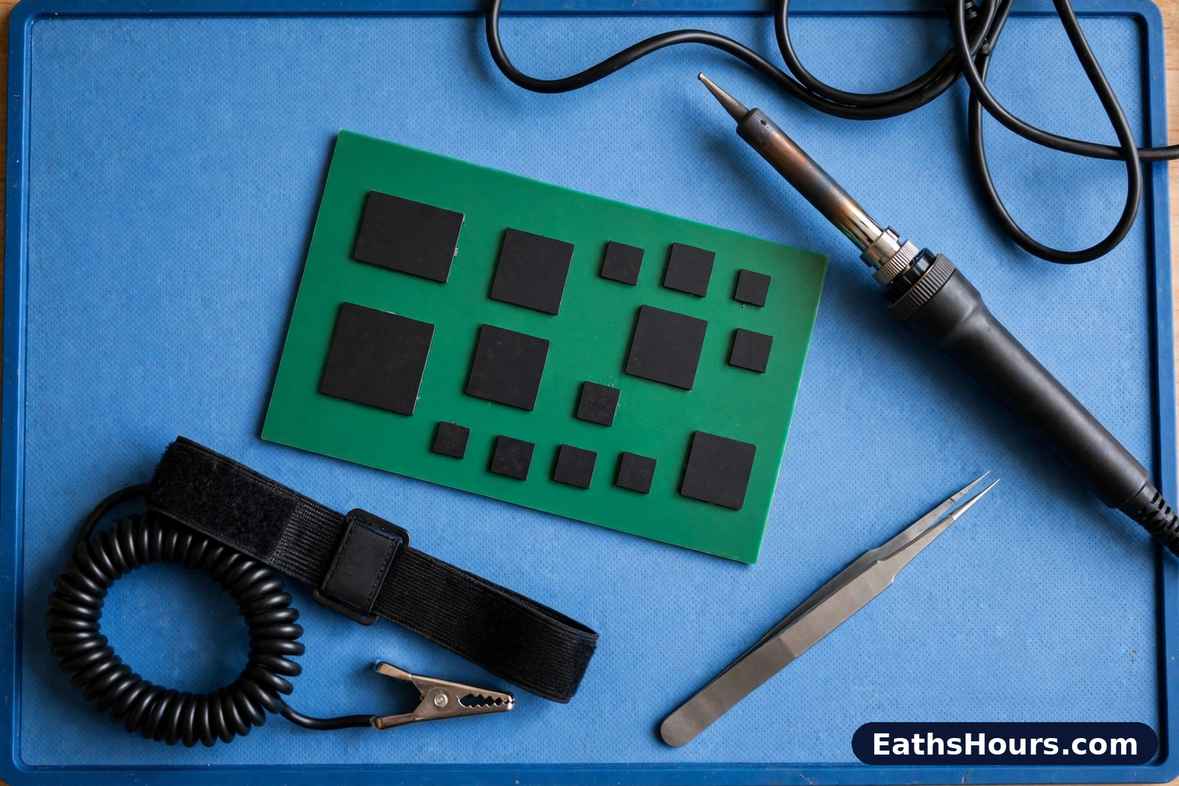
The guide’s tool list — soldering iron, antistatic wrist strap or mat, screwdriver and tweezers, cleaning brush and isopropyl alcohol, and “the official datasheet for the chip” — is a sensible electronics bench kit, and every item on it is real except the last one’s referent: there is no official datasheet, because there is no official anything. A datasheet is the document a manufacturer publishes for a part that exists; it carries the pinout the guide’s later steps depend on. Its absence is not a gap in this article’s research — searches for a datasheet for this string return only the guides themselves. The one tool this installation genuinely requires is the one the guide never mentions: a way to check whether a part number is real before ordering tools for it, which is what “How to Check Any Part Number or Driver Before You Install It” below provides.
Step 1: Power Down the System
The guide’s first step instructs readers to power the system down completely, remove external power and batteries, and discharge static before beginning. As general electronics safety, that is sound advice for any real board work. Documented here as the guide’s claim, it cannot be step one of this installation, because there is no step two to follow it: the thing being installed does not exist, so the powered-down system would be waiting for a part that is never coming. Safety habits are worth keeping for the hardware you actually own — they are simply not the beginning of an install that cannot happen.
Step 2: Locate the Chip Area on Your Board
The guide continues: locate the correct socket or solder pad area on the motherboard or target device, referring to the hardware’s manual for the proper chip placement area. No manual can help here. Real board manuals list the parts their boards carry — sockets, slots and the chips soldered at the factory — and no board’s manual names this string, because no board carries it. A reader who goes looking for its “chip area” will find every real component on their board accounted for by the board’s own documentation, and this name absent from all of it. That absence, repeated across every manual and catalogue, is the finding the rest of the steps keep running into.
Step 3: Orientation and Placement
The guide warns readers to match the pin 1 marking on the chip with the pin 1 marking on the board, since misalignment is a common mistake. Pin 1 markings are real — manufacturers print or mould them onto real packages precisely so orientation can be checked. But there is no package here to carry the marking: no photograph, drawing or datasheet of a “35-ds3chipdus3” exists anywhere outside the guides’ own stock imagery, and the guides disagree about what the supposed part even is — some call it a socketed chip, others a PCIe card, others a firmware module. A part whose physical form changes from page to page has no orientation to get right.
Step 4: Socket or Solder the Chip
The guide offers two methods: gently insert the chip into its socket without bending pins, or carefully solder each pin with even spacing and no short circuits. Both methods are real techniques — for real components. Neither can be performed on this one: there is no chip to insert and nothing to solder. This step is also where following the guide stops being merely futile and starts being risky. A reader determined to complete it has to substitute something — an unidentified chip, a random download described by other copies as the “software version” — and soldering or installing an unidentified substitute into a working board is how real hardware gets damaged. The instruction is documented here, not reproduced as a how-to, for exactly that reason.
Step 5: Inspect and Clean the Area
After placement, the guide advises inspecting all connections under a magnifying lens and cleaning the area with isopropyl alcohol to remove leftover flux. Inspection and cleaning are genuine good practice after real soldering. Here there is nothing to inspect: no placement happened, no joints were made, no flux exists. The step’s presence in the guide is instructive in a different way — it is one of several steps (power down, orient, inspect, reassemble) that would appear in any competent generic chip-installation template, filled in around a name. The template is real craft; the name at its centre is the only invented part.
Step 6: Reassemble and Test
The guide’s sixth step: reassemble the device, boot it up, and watch for power-up signs such as LED indicators or display activation; if the device fails to start, revisit the installation steps. A device that was never opened, holding a chip that was never fitted, will of course boot exactly as it did before — which is worth stating plainly, because the guide’s framing invites a reader whose machine fails for any unrelated reason to blame the missing chip and go back in. Nothing in this name’s story can make a device start or stop; if a real machine fails to boot, the cause is a real component, findable through the board maker’s own diagnostics — not the absence of an invented upgrade.
Step 7: Verify Functionality of the Chip
The guide closes its steps by telling readers to download and use software tools to confirm the chip is operating correctly, re-checking orientation, soldering quality and board compatibility if it is not. This is the step where the guide’s two inventions meet: the verification tools are as unnamed and unfindable as the chip, and “board compatibility” cannot be checked against a datasheet that does not exist. Other copies of the guide go further and print command lines and installer filenames for a “driver package” of this name — none of those files is linked from any manufacturer, repository or accountable source, and none is reproduced here. Downloading executables named after a part that cannot be verified is the single most dangerous action this search can lead to, and it is covered directly in the sections that follow.
The Checks: What Stands Behind 35-ds3chipdus3
Five checks settle most questions about an unfamiliar part number, and together they settle this one.
First, the manufacturer. The guide names the maker as DS3 Technologies Inc. An exact-name search for that company returns the guide itself, its copies, and unrelated businesses — a Siemens rail platform also called DS3, Dallas Semiconductor’s old DS3 telecom line-interface chips, a MOSFET maker called D3 Semiconductor. No chip company named DS3 Technologies, with a product page, a catalogue or a single named part, appears anywhere. Real semiconductor firms leave that trail without trying; this name leaves only articles.
Second, the support site. The guide’s profile table gives the official support address as ds3technologies.com. The domain does not resolve — no website answers there at all. A real support page is where datasheets, drivers and contact details would live; for this name there is no there there, which is why every guide that sends readers “to the official site for the driver” is sending them to an address that does not exist.
Third, the shops. The guide’s own buying section names Mouser Electronics and Digi-Key — the two largest electronics distributors — as places to purchase the chip. Neither catalogue contains any part under this name; searches there surface only unrelated components. A current-production chip, supposedly released in 2023 and sold through mainstream distribution, would have a listing, a price and a stock figure. There is none, at those distributors or anywhere else the checks looked.
Fourth, the copies disagree with each other — about what the thing is, not just about details. The ukrtime guide’s part is a soldered signal chip; one copy makes it an 8-core, 3.5 GHz processor costing around $300 and demanding X570 or Z590 motherboards; another installs it in a PCIe x16 slot; others abandon hardware entirely and describe a firmware-and-driver package with shell commands and version guides. One more recent write-up abandons the product framing altogether and concludes — as this article does — that the string is best treated as an identifier or code. Signal chip, desktop CPU, PCIe card, software package, bare code: the descriptions cannot all be true, and the only primary-source-shaped evidence — catalogues, datasheets, the maker’s own site — supports none of them.
Fifth, the careful sources converge. The write-ups that checked the name rather than copying the guide conclude the same way: no official manufacturer page, datasheet, repository or vendor support page exists for this string, and it should be handled as a technical identifier until a seller, vendor or manual confirms what it means in a specific case. That is also the pattern EathsHours found behind the model code in its xucvihkds checks — confident guides, and nothing verifiable standing behind them — and behind kiolopobgofit, where the name likewise has detailed descriptions but no demonstrable thing. Where those names have nothing behind them at all, this one has fragments of real things — a real controller abbreviation, a real motherboard suffix — and the checks show the whole string belongs to none of them.
Why Correct Installation Matters
The guide argues that correct installation protects the device and ensures the chip performs to its full capability, avoiding costly errors and system instability from misalignment or improper soldering. The sentiment is true — of genuine parts. A mis-seated real chip or a bridged solder joint really can kill a board. Under this name, the costly error runs the other way: the reader most at risk is the one who believes the part exists, and spends money on tools, on a substitute component, or on a “driver package” download offered by a stranger — or opens a working machine to fit something that was never made. Correctness matters here too; it is just correctness about the name, not about the soldering.
Tips for a Smooth Installation
The guide’s tips — read the official datasheet before beginning, work on a clean static-free surface, use a temperature-controlled soldering iron, practise on scrap boards — are good bench habits, and three of the four apply to any real electronics work a reader may do. The first tip quietly gives the whole guide away: it cannot be followed. There is no official datasheet to read, and a guide whose opening tip depends on a document that does not exist has told you, in its own words, that its subject was never checked against one. Keep the bench habits for real parts; let the missing datasheet be the tell it is.
Buying Guide for 35-ds3chipdus3
The guide lists trusted sources for purchasing the chip: the DS3 Technologies official website, Mouser Electronics, Digi-Key, and Amazon via verified sellers. Each leg fails on contact. The official website does not resolve. Neither distributor carries the part, as the catalogue checks above found. And marketplace listings that borrow technical-sounding strings are a known pattern: a listing titled with a name no catalogue carries is selling something else under borrowed words, or nothing at all. The honest buying guide for this name is one line long: there is nothing to buy, and any page offering to sell it — or to sell its “driver” — should be treated as unverified until it names a manufacturer that can itself be verified. No price for this part is printed in this article as fact, including the figures copies of the guide invent, because none could be checked against any real listing.
Common Issues When Installing
The guide’s common issues — bent pins during insertion, cold solder joints, wrong pin alignment, static electricity damage — are the genuine failure modes of real chip work, and each is worth knowing for the day a reader handles a component that exists. As a list for this name, though, it describes problems nobody can have: pins cannot bend on a chip with no pins, and joints cannot run cold on a part that was never soldered. The issues readers actually meet under this name are different in kind — a dead support link, a catalogue search with no result, a download that turns out to be something else — and those are the issues “How to Check Any Part Number or Driver Before You Install It” is written for.
How to Check Any Part Number or Driver Before You Install It

The checks used in this article generalise to any unfamiliar part number or driver name, and they take minutes. Start with the distributors: a real current component is listed by Mouser, Digi-Key or their peers, with a manufacturer name that matches the datasheet. Follow the datasheet to its source — it should be hosted by the manufacturer, whose own site should resolve, name the part, and offer support. Check that independent sources describe the same thing: when the pages about a name cannot agree on what category of object it is, they are describing nothing. And match drivers to hardware the operating system’s way — through the device’s hardware IDs in Device Manager, resolved against the device maker’s own support page — rather than by typing the name into a search engine and running the first executable offered. A real device driver comes from the maker of the device it serves; a “driver” for a part no maker claims is software from nobody, carrying nobody’s accountability.
If You Actually Have a DS3 Controller: The Routes That Exist
One real product family does stand behind two of this string’s letters. “DS3” is the common abbreviation for Sony’s DualShock 3 — the PlayStation 3 controller — and a reader who arrived here with one of those in hand has real options, none of which involves a chip. Windows has no inbox driver that makes a DualShock 3 fully work, which is exactly the gap that produced years of unofficial tools; the historically famous ones are best avoided now — ScpToolkit, once the standard answer, is a discontinued open-source project, and the older MotioninJoy package was notorious for bundled adware. The maintained route is DsHidMini, an open-source, BSD-licensed Windows 10/11 driver for DualShock 3 controllers, published on GitHub by its developer nefarius, whose own documentation warns that the project’s only official homes are that GitHub repository and the developer’s nefarius.at sites — anything else claiming to offer it is, in the project’s words, a scam. That is the pattern to carry back to the chip search: the real thing can name its home, and warns you about the copies.
Conclusion
After all the checks, the position is simple. There is no 35-ds3chipdus3 chip: no manufacturer behind the name the guides give, no datasheet, no catalogue entry at the distributors the guide itself recommends, no support at the address it prints, and no part to power down for, orient, solder or verify. What the string actually is — an identifier or code whose fragments echo a telecoms standard, a controller and a motherboard suffix — explains both why it looks technical and why nothing technical stands behind it. The guides assemble the standard parts of a chip-installation template around that string, and their copies cannot even agree on which kind of object they are installing.
So treat the name the way the checks leave it. If you met the string on a label, a BIOS screen or a driver folder, match it against the manual or vendor of the device it appeared on, and let that context say what it means. If you came looking to buy or fit a chip, there is nothing to buy or fit — keep your tools and your machine for parts that catalogues carry. And whatever a page offers you to download under this name, leave it alone: every legitimate device driver for real hardware comes from a maker who can be named and checked, and software for a part nobody makes is best treated as a risk until it proves otherwise.
FAQs About How to Install 35-ds3chipdus3
Q1: How long does it take to install 35-ds3chipdus3?
There is no installation to time. The guides’ figures — fifteen minutes for a professional, up to an hour for a beginner — are timings for fitting a chip that does not exist.
Q2: Can I damage the chip during installation?
There is no chip to damage. The real risk runs the other way: opening a working device, or running a downloaded “driver” for this name, can damage hardware and software that do exist.
Q3: Is it okay to reuse the chip after desoldering?
The question assumes a chip was fitted and removed; neither is possible. Desoldering advice applies to real components, and no real component carries this name.
Q4: Does every motherboard support 35-ds3chipdus3?
No motherboard supports it, and none needs to — support is a relationship between a board and a part, and there is no part. Compatibility can only be checked for components a manufacturer actually publishes.
Q5: What’s the best way to learn how to install 35-ds3chipdus3 for the first time?
Learn the checking instead: verify a part number against distributor catalogues and the manufacturer’s own site before trusting any guide. For real installation skills, board makers publish manuals for the boards that exist.